Using the code editor
Wwwobble allows you to directly edit the HTML of your website in addition to dragging elements around and using the sliders. Any change you make in the graphical interface is directly reflected in the code, and any edits you make to the code appear immediately in the web page.
You can copy and paste html from other websites, or from resources such as MDN
There are two main instances of the code editor accessbile from different parts of the UI: page editor and selected element editor.
HTML page editor
Section titled “HTML page editor”Access the page editor via the </> button in the toolbar in the top right corner
This will open a panel containing the code editor for your wwwobble page.
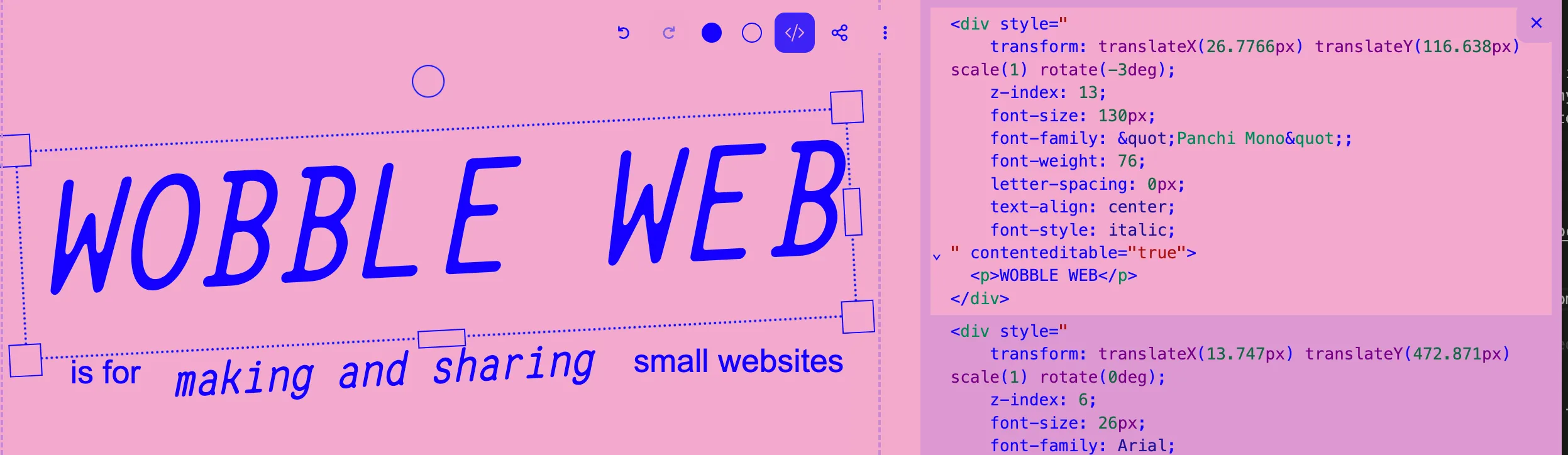
Try dragging elements around, and watch the code update in real time. When you select an element on the left, the code editor will scroll to the relevant section of code. Similarly, when you click on an element in the page html editor, the corresponding visual element will be highlighted and selected. Try changing pieces of the code, and seeing what changes in each element.
When you are editing the code for an element, wwwobble attempts to change as little of the underlying page as possible, rather than recreating the entire page on each edit. This hopefully means that the editor runs faster, and also that elements with complex state, such as video elements or iframes, are preserved as you are editing the page. We are currently using the libary morphdom to accomplish this.
HTML element editor
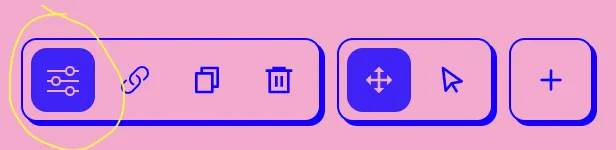
Section titled “HTML element editor”You can access an additional code editor via the style editor panel for each element. Click on an element on the page and then select the far left icon to show the style panel.
Then click on </> inside the style panel to show the code for just this element.
The element editor works the same as the HTML page editor above, but only shows a single element at a time.
wobble-code custom element
Section titled “wobble-code custom element”You can also add the wobble web code editor as a live html editor for updating portions of the page. This means that the code editor is exported as part of your webpage, and visitors to the site can see and edit the HTML as well!
To do this, click + to add an element, and select wobble-code. See wobble-code custom element for more details.